JavaScript Cheet Sheet

Describing JavaScript Fundaments with Examples


Section 1 - JavaScript Fundamentals Section 2 - Web Browser Interaction

Section 1 - JavaScript Language Fundamentals

Numerical Data
  • Also known as integers
  • Whole numbers
  • Can span from -2exp(53) to 2exp(53)
Floating-point Numbers
  • Fractional numbers such as 1.67
Special Numbers
  • Include: -Infinity, Infinity, and NaN (not a number)
Text Data
  • Also known as string, such as "Hello World"
  • You can also use single quotations such as 'Hello World'
  • Strings can be concatenates together, such as "con" +"cat" + "e" + "nate" outputs: concatenate
  • Template literals - 'half of 100 is ${100/2}' outputs: half of 100 is 50
  • JavaScript uses "\" as an escape character if you want to actually display quotations ("") in the output. For example, "Peter O\'Toole" will output Peter O'Toole
  • newline character: "\n"
  • tab character: "\t"
  • backspace character: "\b"
Declaring Variables
Variables are declared using keywords:
  • var Example: var myVariable; var is globally scoped
  • let Example: let myVariable; let is block scoped. let variables can be updated but not re-declared
  • const Example: const myVariable = 3; const is block scoped. const variables can neither be updated nor re-declared. const must be initialized during declaration
Variables Example
Arithmetic
  • +     Addition
  • -     Substraction
  • *     Multiplcation
  • /     Division
  • %     Remainder
Unary Operators
  • Operators listed as words
  • Example: "typeof"
    console.log(typeof 4.5) will output number
Boolean Values / Comparison Operators
  • >     Greater Than
  • <     Less Than
  • ==     Equality
    • Checks whether two operands are equal returning a Boolean result
    • Unlike the strict equality operator, it attempts to convert and compare operands that are of different types.
  • ===     Strict Equality
    • Checks whether its two operands are equal, returning a Boolean result
    • Unlike the equality operator, the strict equality operator always considers operands of different types to be different.
  • !=     Not Equal To
    • Tests whether values are not precisely equal.
  • !==     Strict Inequality
    • Do not want any type conversions to happen
Logical Operators
  • &&     AND operator
  • ||      OR operator
Operators Example
  • Conditional Execution - a branch in the program created with the if keyword.
  • Multiple code branches can be made using if else and else keywords to set multiple conditions
  • switch statement can be used to simplify code with multiple decision paths. A switch expression is evaluated and compared with each case. If there is a match, the associated block of code is executed, otherwise the default code is execute.
Conditional Example
  • while keyword followed by an expression in parentheses will execute the code inside the loop while the expression is true
    while (var < 10){ execute this code }
  • do while loop starts with keyword do followed by block of code. This code is a primer to the loop. It will be executed prior to the while expression being checked
    do { some code } while (condition == true);
  • for
Loops Example
  • Created using keyword function
  • Wrapping a pieice of a program inside a "function myCode() { }"
  • Functions provide a way to structure large programs to reduce repitition
  • Functions can have multiple parameters or no parameters
  • Some functions can return a value, and some will not and only produce a side effect
  • Functions can have other functions inside them
Functions Example
  • An object has properties. For example, a car is an object that has weight, color, mpg, and much more.
  • Values of the type object are arbitrary collections of properties
  • One way to create an object is by using braces as an expression
  • Example1:    var object = {};
  • Example2:    const car = { make: 'Ford', model: 'Fiesta', color: 'Red'}
  • Object properties are mutable. You can change their values at different times.
  • Comparing objects using == compares identity and will produce false if objects have the same properties unless both objects are precisely the same value.
Objects Example
  • Some examples of built in objects in JavaScript are:
  1. Arrays - More on Arrays in 1.8 Arrays
  2. Strings - More on Strings in 1.9 Strings
    • String objects correspond to the string primitive data type. For example: var myString = new String("I'm a string");
    • Properties: length, Example myString.length value would be 19, the length of the string
  3. Number
    • Ex1: var aNumber = new Number(123);
    • Ex2: var aNumber = 123.456789; conversion to number object is done behind the scense
    • Method Example 1 - toFixed() - ie/ aNumber.toFixed(2) will round to 2 decimal places, 123.45
    • Method Example 2 - Number.parseFloat(string) - Changes a string, such as "55" to a number 55
  4. Boolean - is an object wrapper for a boolean value
    • Example: var testCondition = new Boolean(false);
    • Method Example: testCondition.valueOf() will return the value of the boolean
  5. Date - handles everything to do with date and time in JavaScript
    • Create a date object: var theDate = new Date();
    • Another way to create a date ojbect: var anotherDate = new Date("22 June 20");
    • Or, written another way: var thisDate = new Date("June 22 2020")
    • Method Ex1: getDate() Returns the day of the month
    • Method Ex2: getDay() Returns the day of the week as a number starting with Sunday as 0
    • Method Ex3: getMonth() Returns the month of the year as a number starting with January as 0
    • Method Ex4: getFullYear() returns the year in 4 digits
    • Method Ex5: toDateString() returns the current date as a string
  6. Math object provides userful functions and number manipulation methods
    • All properties and methods of Math are static
    • Properties:
      • Math.E - Euler's constant 2.718
      • Math.LN10 - Natural logarithm of 10, approx 2.303
      • Math.PI - Radio of a circl's circumferene to it's diameter 3.14159
  7. Methods:
    • Math.abs(x) - returns the absolute value of x.
    • Math.ceil(x) - returns theh smallest integer greater than or equal to x.
    • Math.floor(x) - returns the largest integer less than or equal to x.
    • Math.cos(x) - returns the cosine of x.
    • Math.exp(x) - returns e^x where x is the argument and e is Euler's constant 2.718
    • Math.max([x[ ,y, ..]]]) - returns the largest of zero or more numbers.
    • Math.pow(x,y) - returns base x to the exponent y (x^y)
    • Math.random() - returns a pseudo-random number between 0 and 1
    • Math.round(x) - returns the value of the number x rounded to the nearest integer.
  8. RegExp - Regular expression object for matching text with a pattern
    • var myRegExp = /\b'|'\b/; or written as var myRegExp = new RegExp("\\b'|'\\b");
      • Forward slashes (/) mark start and end of regular expressions
    • Example:
    • let re = /(\w+)\s(W+)/
      let str = 'John Smith'
      let newstr = str.replace(re, '$2, $1')
      console.log(newstr)
      // Output "Smitch, John"
    • \w - Match any word character a-z, A-Z, 0-9 and _
    • \W - Any non-word character
    • \b - Matches a word boundary, point between a word character and non-word character
    • \s - Any whitespace character
    • \S - Any non-whitespace character
    • + matches the previous item one or more times
  9. Function - JavaScript function is actually a Function object
    • Properties:
      • Function.arguments - an array off the arguments passed to a function
      • Function.length - specifies the number of arguments expected by the function
    • Methods:
      • Function.toString() - returns a string representing the source code of the function
  • Array's are objects which can hold more than one value at a time
    • Example
      • const cars = ["Kia", "Ford", "Toyota"];
  • length Property - sets or returns the number of elements in an array
    • Example
      • document.write(cars.length); would output 3
  • push() Method - Adds an element to the array without having to specify an index
    • Example:
      • cars.push("Nissan"); - adds Nissan to the cars array, increasing the index from 3 to 4
  • splice() Method - Removes an item from an array. Requires two parameters:

    Parameter 1 - start index
    Parameter 2 - deleteCount
    Parameter 3 and onwards - Items to insert.

  • concat() Method - Joins two array variables into one large array. This is done by using the method with one array and pass the name of another array as its parameter.
    • Example:
      • var newArray = cars.concat(someOtherArrayVariableHere);
  • slice() Method - Copies a portion of an array to another array variable. Two parameters:

    1) The index of the first element you want copied
    2) Optional parameter, the index of the element marking the endo fo the portion you are slicing out. If this parameter is not used, the array will be copied from the first parameter to the end of the array.

  • join() Method - concatenages all elements in an array and returns them as a string. Also allows you to specify characters to insert between elements as they are joined. There is one parameter and that is the string to insert between elements.
  • sort() Method - Can sort array elements in alphabetical or numerical order.
  • reverse() Method - Reverses the elements of an array, the first element will become the last element.
  • indexOf() Method - Return the index of an item's first occurrence in an array.
  • lastIndexOf() Method - Return the index of an item's last occurrence in an array.
Arrays Example
  • String objects used to represent and manipulate a sequence of characters
  • Need to be created, for example:
    • var myString = new String("Hello");
    • The above is equivalent to: var myString = "Hello";
  • length Property - returns the number of characters in the string
    • Example:
      • var myName = "Daniel";
        myName.length;
        would return 5
  • indexOf() & lastIndexOf() Methods - Searches for a substring inside another string. Requires two paramenters: 1) The string you want to find, 2) The character position to start with (optional)
  • substring() Method - Cuts out part of a string and assigns to a new string. Requires two parameters: 1) Character start position; 2) The character end position (optional - checks to end of string if not used)
  • substr() Method - Cuts out characters from a longer string. Requires two parameters: 1) Character start position; 2) The character end position (optional - checks to end of string if not used)
  • toLowerCase() & toUpperCase() Methods - converts a string of characters to lower cases and upper cases respectively.
  • charAt() & charCodeAt() Methods - Give information about a single character within a string. They accept one parameter, the index position of the character you want in the string. charAt() returns the character at the index used as a parameter. charCodeAt() returns the number which represents the decimal character code for that character in the Unicode character set.
  • fromCharCode() Method - is a static method which is passed a series of numbers representing character codes which are separated by commas and converts them to a single string.
Strings Example

Section 2 - JavaScript - Web Browser - Web Document Interaction

Browser Objects
  • Browser objects - help us interact with the browser window
  • JavaScript can change what's being displayed in a browser by making changes to the DOM (Document Object Model)
  • The DOM is a hierchy of elements. The objects representing the elements have properties such as parentNode and childNodes
  • JavaScript code can manipulates these elements and there styling
  • When JavaScript is running in a web page it has access to many objects made available by the browser
  • The objects that the browser makes available to you for use with JavaScript is known as the browser object model (BOM)
  • The objects, their methods, properties and events are mapped out in the BOM
Window Object
  • BOM has a hierchary, at the very top is the window object. The window is like the frame of the browser including everything such as scrollbars and navigator bar icons
    • window object is a global object, you don't need to use it's name to access it's properties and methods
      • Example: alert("Hi");is a window object which could also be written as window.alert("Hi");
  • Properties of window object are sometimes objects themselves. Those common to all browsers include:
    • document - represents your page
    • navigator - holds information about the browser
    • history - contains history of pages visited by the user
    • screen - contains information about the display capabilities of the client
    • location - contains information about the display capabilities of the client
Document Object
  • Inside the window is the page which is represented by the document object
  • This object can be used to gain access to HTML elements, their properties and methods
  • Has a number of properties with it, which are also array-like structures called collections
  • The main collections are:
    • forms
    • images
    • links
Navigator Object
  • Navigator object is a property of window
  • Contains a lot of information about the browsers and the operating system in which it's running
  • Using navigator properties you can find out which browswer, version and operating system the user has, then you can act on that information. This is referred to as browser sniffing
  • A better alternative is to use feature detection, the act of determining if a browser supports a particular feature.
Screen Object
  • Properties include:
    • width - returns the width of the user screen in pixels
    • height - returns the height of the user screen in pixels
    • availWidth - returns the width of the visitor's screen, in pixels, minus interface features like the Windows Taskbar
    • availHeight - returns the height of the visitor's screen, in pixels, minus interface features like the Windows Taskbar
History Object
  • History object keeps track of each page the user visits
  • List of pages is called the history stack which enable the user to click the back and forward buttons
  • You have access to the history object via the window object's history property
  • length property - the number of pages in the history stack
  • back() method
  • forward() method
  • go() method, takes one parameter whic is how far back in the history stack to move
Strings Example
HTML Objects
  • When you open a web page, your browser retrieves the page’s HTML text and parses it
  • The browser builds up a model of the document’s structure and uses this model to draw the page on the screen
  • The Document Object Model (DOM) is the data representation of the objects that comprise the structure and content of a document on the web
  • A visual representation of the DOM can be represented as the following tree:
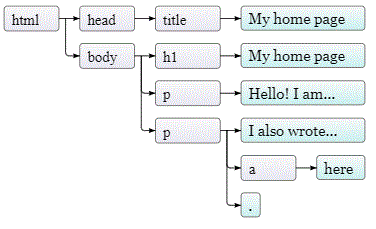
    DOM (Document Object Model) Tree Image
  • document.documentElement serves as the root
  • Nodes for elements, which represent HTML tags, determine the structure of the document. These can have child nodes, such as: document.body
  • Child nodes can have leaf nodes, such as pieces of text or comment nodes
  • The DOM is language neutral, it was not designed specifically for JavaScript, so the DOM interface may seem cumbersome to learn.
  • DOM nodes contain a wealth of links to other nearby nodes:
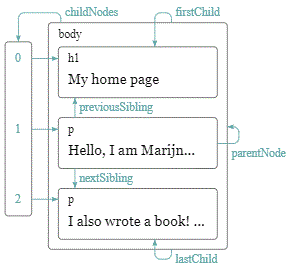
    DOM image with node descriptions
  • We can use JavaScript to find elements in the DOM using properties of the Node Object such as:
    • firstChild
    • lastChild
    • previousSibling
    • nextSibling
    • To find the first href attribute in a document you can use: document.body.getElementByTagName("a")[0];
    • To find elements with a given class attribute you can use: getElementsByClassName
Example 1 - Exploring HTML Object Properties
Changing the Document
  • The shape of the DOM tree can be modified using methods such as:
    • remove - remove a node from it's current parent
    • appendChild - puts a node at the end of the list of children
    • insertBefore - inserts a node given as the first argument bbefore the node given as the second argument
    • replaceChild - used to replace a child node with another one. Takes two nodes as arguments: the new node, and the node to be replaced. The replaced node must be a child of the element the method is called on.
Example 2 - Changing the document Example 3 - Exploring Node Object Properties
Creating Nodes
  • Test nodes can be created using method: document.createTextNode
  • To create element nodes you can use: document.createElemend method. This takes a tag name and returns a new empty node of the given type.
Attributes
  • Attributes can be set as nodes, using: getAttribute and setAttribute
Layout
  • Elements that start on a new line like (<p>) or (<h1>) are block elements
  • Elements that are rendered on the same line like (<a>) or (<strong>) are inline elements
  • Size and position of an element can be accessed from JavaScript
  • offsetWidth and offsetHeight properties give you the space in pixels the elements take up
  • clientWidth and clientHeight properties give you the size of the space inside the element, ignoring border width
  • getBoundingClientRect method is the most effective way to find the precise position of an element on the screen. It returns an object with top, bottom, left, and right properties, indicating the pixel positions of the sides of the element relative to the top left of the screen.
Example 4 - Layout Properties
Events
Events Overview
  • Browsers have the ability to actively notify our code that an event occurs. This is done by registering functions as handlers
  • Example1:
    window.addEventListener("click", () => {enter code here which will be performed after the window is clicked....}
  • window binding refers to a built-in object provided by the browser. It represents the browser window that contains the document
  • Calling addEventListener method registers the second argument to be called whenever the event described by it's first argument occurs.
  • Example2:
    let button = document.querySelector("button");
    button.addEventListener("click", () =>{enter code here to be performed after the button is clicked};
  • Event handler functions are passed an argument, the event object
    • Example: The button object type property holds a string identifying the event (ie/ click or mousedown, ect.)
How to Connect Your Code to an Event
You can connect your code to an event in three ways:
  1. Assigning HTML attributes
    • Example

      <img src="usa.gif" onclick="changeImg(event)" />
      <script>
         function changeImg(e)......
      </script>

    Downsides to using HTML attribute event handlers
    • HTML and JavaScript are mixed together which can make it harder to maintain and debug
    • You can't remove an event handler without changing HTML
    • You can only set up event handlers for elements that appear in your HTML code, as opposed to elements you create dynamically, such as using document.createElement()
  2. Assigning an object's special properties
    Example:
    • document.getElemendById("someID").onclick = functionName;
    • Downside is you can only assign one function to handle a given event
  3. Calling an object's special methods
    • This is the standard DOM event model
    • document.getElemendById("someID").addEventListener("click", functionName);
    • An advantage is you can register multiple listeners and handlers
    • Methods:
      • removeEventListener("eventType", elementObjClick)
Common HTML Events
  • onchange - An HTML element has been changed
  • onclick - The user clicks an HTML element
  • onmouseover - The user moves the mouse over an HTML element
  • onmouseout - The user moves the mouse away from an HTML element
  • onkeydown - The user pushes a keyboard key
  • onload - The browser has finished loading the page
Attributes
  • onclick - You can attach one handler to the attribute whose name is the event name with on in front of it
  • tabindex -
Event Methods
  • click - occurs when a mouse button is clicked (pressed and released)
  • dblclick -
  • keydown -
  • keyup -
  • mousedown - occurs when a mouse button is pressed
  • mouseup - occurs when a mouse button is released
  • mouseover - occurs when a mouse button is moved onto an element or text
  • mouseout - occurs when a mouse button is moved out and away from an element or text
  • mousemove - This event can be used to track the position of the mouse
    • clientX and clientY properties contain event's coordinates (in pixels) relative to top-left corner of the window
    • pageX and pageY properties contain event's coordinates (in pixels) relative to top-left corner of the whole document (which may be different when the window has been scrolled)
  • touchstart - When a finger starts touching the screen
  • touchmove - When a finger is moved while touching a screen
    • Since many touchscreens can detect multiple fingers at once, these events do not have single set coordinates, rather their event objects have touches property, which holds an array-like object of points
  • scroll - When an element is scrolled
  • focus - event is fired when an element gains focus
  • blur - event is fired when an element loses focus
  • load - event is fired when a page finishes loading. It fires on the window and the document body objects. This is often used to schedule initialization actions that require the whole document to have been built.
  • beforeunload - event is fired whe a page is closed or navigated away from. The main use is to prevent the user from accidentally losing work by closing a document.
Methods
  • addEventListener - method is used to register an event handler to make it p ossible to detect and react to events happening in a web page
  • removeEventListener
  • stopPropagation - prevents handlers further up (parent node and higher to the window) from receiving the event
  • preventDefault - method is called to prevent the default behaviour of the handler being called before the default behaviour takes place
Properties
  • target property refers to the node where it originated, the element object that received the event
  • type property can be used to determine what type of event occurred
  • bubbles property indicates whether an event can bubble, which is passing control from one element to another up the hierarchy
  • cancelable property indicates whether an event can have its default action canceled
  • currentTarget property identifies the current target for the event as the event traverses the DOM
  • defaultPrevented property indicates whether or not preventDefault() has been called on the event
  • eventPhase property indicates which phase of the event flow an event is in
  • timestamp property indicates at what time the event occurred
Propagation
  • Handlers usually register on nodes with children also receiving the events. For example, if a button inside a paragraph is clicked, event handlers on the paragraph will also see the click event. However, if the paragraph and button both have a handler, the more specifc handler gets to go first. The event is said to propagate outward
Event Example